Install Guide
How to Install Verity JE on Minecraft Java
Last updated: July 14, 2026 · Verity JE is in early beta — expect updates
Installing the Verity JE mod on Minecraft Java takes about ten minutes:
- Install NeoForge for 1.21.1 (or Forge for 1.20.1).
- Download the Verity JE
.jarfrom the official CurseForge page. - Drop it into your
modsfolder. - Launch the loader profile and create a world.
- Connect the AI: a free Groq API key, or a local OLLAMA model.
The AI step is what makes Verity JE special — it's the only Verity mod whose conversation is genuinely AI-driven. Details below.
Tested on: macOS · NeoForge installer · verity-3.4.1.jar · July 14, 2026. The install steps and screenshots below are from that run; in-game AI setup screenshots are coming after a full playthrough.
Before you start: what you need
- Minecraft Java Edition on Windows, macOS, or Linux — Verity JE supports 1.21.1 with NeoForge or 1.20.1 with Forge.
- The Verity JE mod itself, only from the official page: Verity JE on CurseForge (by VarmiteYT, licensed by ThatMob).
- For live AI chat: a free API key from groq.com, or OLLAMA installed locally if you'd rather keep Verity's brain fully offline.
Step-by-step installation
Step 1 — Install NeoForge for Minecraft 1.21.1
Get the installer from neoforged.net — but mind the version pickers.
The version trap: neoforged.net preselects the newest Minecraft version (26.2 in our screenshot below). Verity JE does not run on it — switch the Minecraft Version dropdown to 1.21.1 before downloading, or the game will simply ignore the Verity mod. We hit this ourselves so you don't have to.
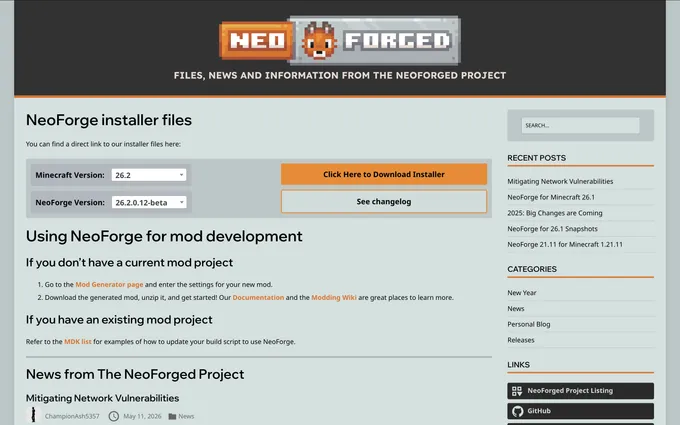
On macOS, Gatekeeper will block the .jar on first open with a "Not Opened"
warning:
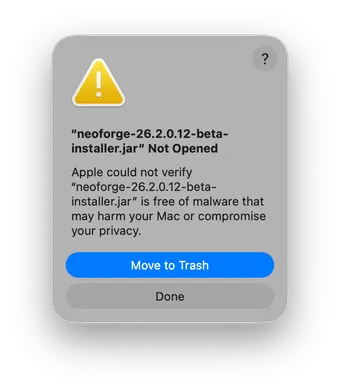
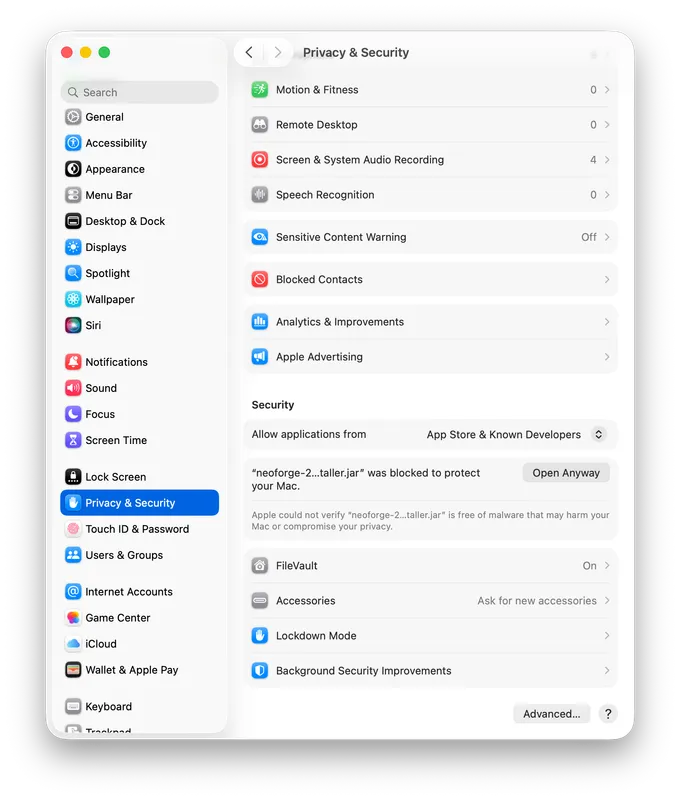
Click Done (not Move to Trash), then open System Settings → Privacy & Security, scroll to the Security section, and click Open Anyway next to the blocked file. Confirm once more when the dialog reappears.
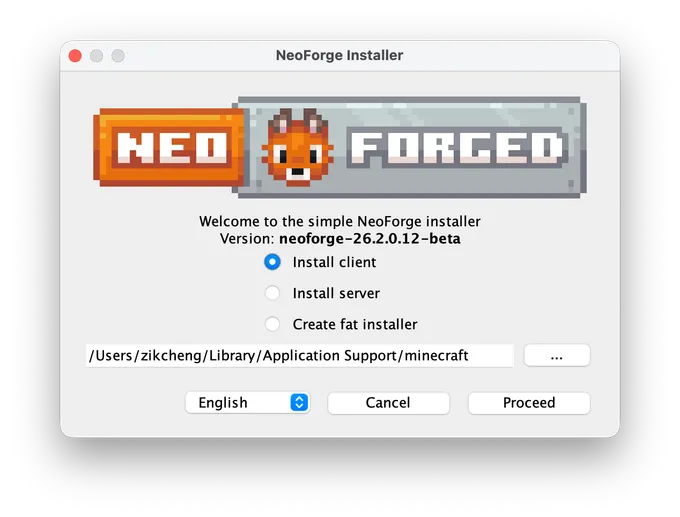
In the installer window, keep Install client selected and hit Proceed. It downloads its libraries and adds a NeoForge profile to your Minecraft launcher — run that profile once to the main menu, then quit. Verity itself comes next.
Step 2 — Download Verity JE
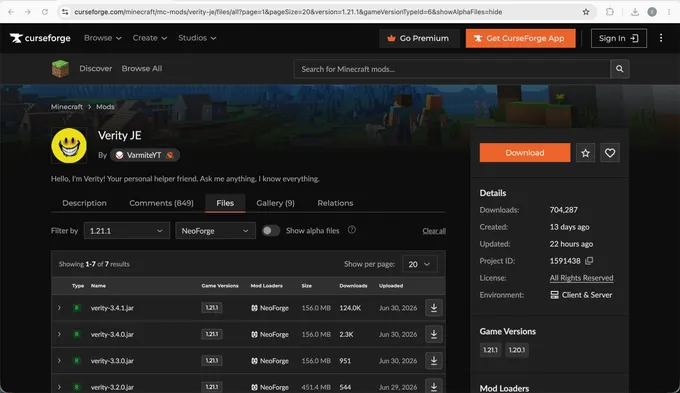
On the official Verity JE CurseForge page, open the Files tab and filter by
1.21.1 and NeoForge — the top result is the current build
(verity-3.4.1.jar, ~156 MB, at the time of writing). Download it; don't unzip
it.
Step 3 — Drop the .jar into your mods folder
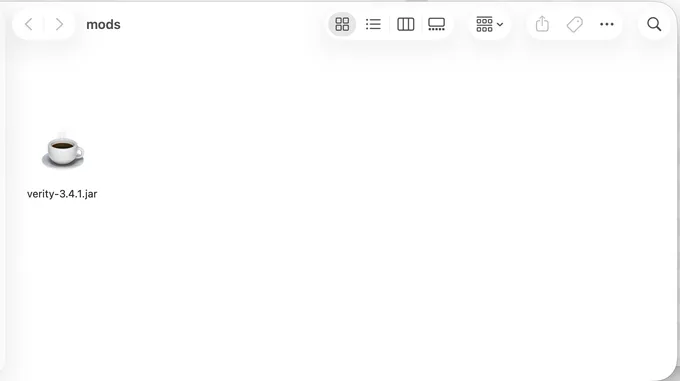
Open your .minecraft/mods folder — on Windows, paste
%appdata%\.minecraft\mods into Explorer; on macOS press
Cmd+Shift+G in Finder and go to
~/Library/Application Support/minecraft/mods (create the folder if it doesn't
exist) — and move the Verity JE .jar inside.
Step 4 — Launch and create a world
Start the NeoForge profile from the launcher and create a new world. Verity's story is paced across your world's first days, so a fresh world is the intended way to play — the arrival, the honeymoon phase, and everything the lore guide describes after it.
Step 5 — Connect the AI
Out of the box Verity works, but its live conversation needs a brain. Two options:
- Groq (easiest): create a free account at groq.com, generate an API key, and paste it into Verity JE's settings in-game. Chat then runs through Groq's hosted models.
- OLLAMA (offline): install OLLAMA, pull a model, and point Verity's config at your local instance. No account, no key, everything stays on your machine.
Your API key is a credential — don't share it, don't paste it into worlds you download, and revoke it at groq.com if it leaks. Verity JE only needs the key locally to call the chat API.
Groq or OLLAMA: which should you pick?
Groq is the low-friction option — the free tier is generous, setup is one key, and responses come back fast, which suits Verity's conversational pacing. The trade-off is that your chats leave your machine. OLLAMA flips that: everything runs locally and offline, which fits this mod's paranoid premise rather nicely, but you need hardware comfortable running a local model, and replies will be slower on a modest machine. For a first playthrough, Groq is the sensible default; move Verity to OLLAMA later if privacy or offline play matters to you.
Updating Verity JE
The mod is in early beta and updates often. When a new build lands on the CurseForge page,
quit the game, swap the old .jar for the new one in your mods folder, and
relaunch — your world and Verity's story progress stay put. Checking the page once a week
is worth it while Verity JE is moving this fast.
Troubleshooting
The game runs but Verity never appears
Nine times out of ten this is the version trap from Step 1: a NeoForge built for a newer Minecraft (26.x) silently ignores a 1.21.1 mod like Verity JE. Check your launcher profile says NeoForge for 1.21.1; if it doesn't, re-run the installer with the right version selected.
The game crashes on launch
Almost always a version mismatch: the Verity JE file, the loader, and Minecraft must agree (1.21.1 + NeoForge, or 1.20.1 + Forge). Re-check all three and remove other mods to rule out conflicts.
Verity spawns but won't chat
That's the AI connection. Confirm your Groq key is entered correctly and your machine is online — or, for OLLAMA, that the local server is running and a model is pulled. Remember Verity JE is in early beta; check the CurseForge page for a newer build.
Playing on a phone or console instead?
Java mods don't run there — you want a Bedrock version of the Verity mod. See the Bedrock install guide or compare all three Verity versions first.
Not sure Verity JE is the right pick? The versions & downloads overview covers all three adaptations in one place.